Screenshot-Based Bug Reporting: Why Visual Context Matters
September 22, 2026
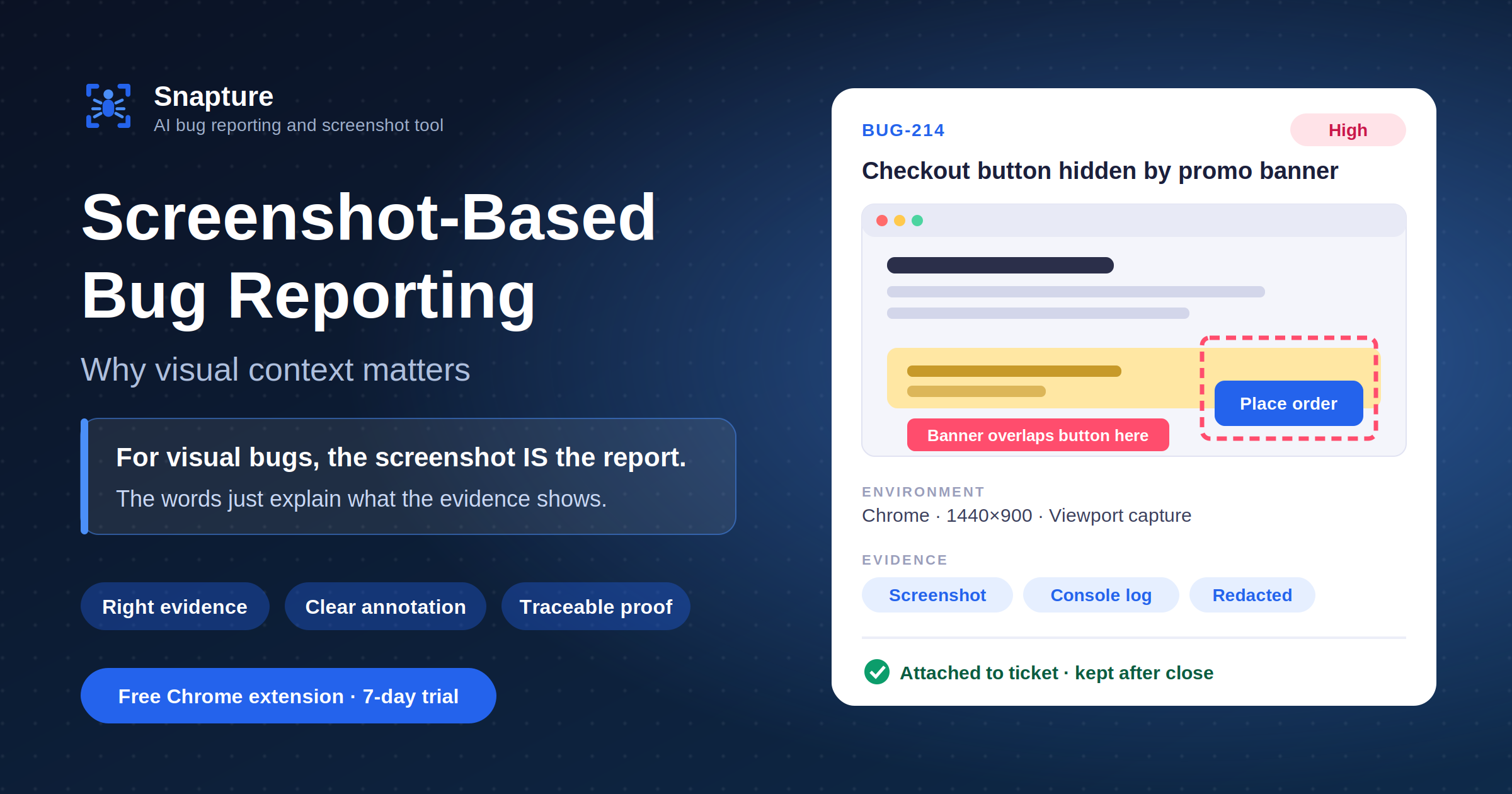
A screenshot is not decoration on a bug report. For a large class of defects, it is the report, and prose is what gets added around it.
“Why Bug Reports Fail” covered where context leaks out of the reporting process and what a report needs to survive the handoff. One of the twelve elements that article named, visual evidence, carries more of that load than most teams treat it as carrying. This piece goes one level deeper: what screenshot-based bug reporting actually is, which defects it solves and which it doesn’t, how to choose between a screenshot, a recording, and a console log, and how to annotate and store evidence so it still means something during regression and reopens.
What Is Screenshot-Based Bug Reporting?
Screenshot-based bug reporting is a workflow in which a captured image of the failing state is the primary evidence in the report, with written detail (steps, environment, expected versus actual behaviour) built around it rather than standing in for it.
That’s a narrower claim than it sounds. It doesn’t mean every bug report is a picture with a caption. It means that for defects a reader can recognise on sight, the image does the identification work that a paragraph would otherwise have to do badly.
Why Prose Fails for Spatial Information
Prose is a poor encoding for spatial information. Try describing, in words alone, that a label sits 4px too close to the field above it and wraps at narrow widths. A reader has to build a mental image from your sentence, then hope it matches what’s on screen. A screenshot skips that translation step entirely: the reader recognises the problem instead of reconstructing it.
When Screenshots Beat Prose
Screenshots beat prose specifically when:
The defect is spatial (layout, alignment, overlap, spacing).
The defect is about appearance (wrong colour, wrong icon, truncated or garbled text).
The reader needs to verify “is this what it’s supposed to look like,” not “what sequence produced this”.
Precision matters more than narrative: a pixel-level overlap is easier to see than to describe.
Screenshots lose to prose, or need help from it, when the defect is about sequence, timing, or state that isn’t visible on screen, which is most of the rest of this article.
Defect Taxonomy: Visual, Behavioural, and Both
Not every bug is the same shape, and the taxonomy determines what evidence actually helps.
Purely Visual Defects
The failure is entirely on screen and static. A single, well-composed screenshot is close to sufficient evidence on its own.
Broken or collapsed layouts.
Alignment, spacing, and overflow problems.
Incorrect, truncated, or untranslated text.
Missing elements that should render for a given state or role.
Wrong component states: a disabled control that should be active, a selected tab that isn’t highlighted.
Overlapping UI, z-index conflicts, clipped controls.
Purely Behavioural Defects
Nothing is visibly wrong in any single frame; the problem is in what happened, in what order, or in what the system did that isn’t rendered anywhere. A screenshot of the end state may show nothing unusual at all.
Data saved incorrectly despite the UI looking correct.
A request firing twice on a single click.
A race condition that only shows up under specific timing.
An action that silently fails with no visible error.
Mixed Defects
The most common category in practice. There’s a visible symptom, but the cause and the reproduction path are invisible in a still frame.
A form that submits but shows no confirmation and no error.
A price that’s visibly wrong because a calculation upstream failed.
A responsive layout that breaks only after a specific interaction sequence, not on initial load.
Why the Taxonomy Matters
The taxonomy matters because it tells you what to reach for. Purely visual defects are screenshot territory. Purely behavioural defects need a recording, a console log, or both; a screenshot of the aftermath tells the reader almost nothing about what happened. Mixed defects need a screenshot to establish what’s wrong plus something else to establish how it got that way, which is exactly the split the pillar article draws between visual evidence answering “what is wrong” and structured reproduction information answering “how do I get there.”
Screenshot vs. Screen Recording vs. Console Log
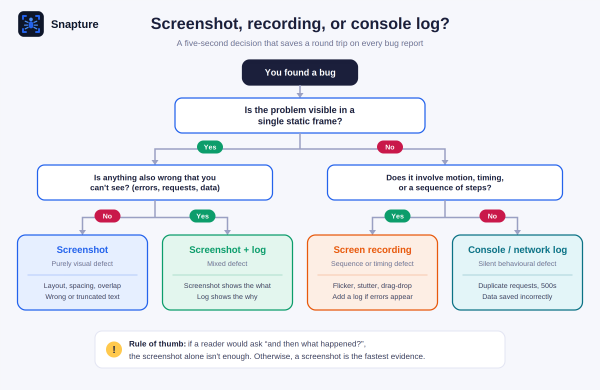
Picking the right evidence type is a five-second decision that saves everyone a round trip. A rough rule:
When to Use a Screenshot
Use a screenshot when the defect is visible in a single static frame and doesn’t depend on what happened a moment before or after. Layout bugs, styling bugs, text bugs, and most state-display bugs qualify. A screenshot is also the cheapest artefact to produce, annotate, and read, so default to it when it’s sufficient.
When to Use a Screen Recording
Use a screen recording when the defect involves motion, timing, or a sequence of interactions that a still frame can’t capture: a dropdown that flickers before settling, an animation that stutters, a modal that closes before the click that was supposed to trigger it, a drag-and-drop that misbehaves partway through the drag. If someone reading the report would need to ask “and then what happened?”, that’s the recording’s job, not the screenshot’s.
When to Attach a Console Log or Network Trace
Attach a console log or network trace when the defect isn’t purely visual at all: a failed request, a JavaScript error, a response that came back with the wrong shape. A red console entry captured at the moment of failure usually shortens a developer’s investigation more than another paragraph of description, because it points at the actual failure rather than its downstream symptom.
Combining Evidence Types
These aren’t mutually exclusive. A mixed defect often needs a screenshot to establish the symptom and a console log to establish the cause, with the screenshot doing the recognition work and the log doing the diagnosis work. The failure mode to avoid is defaulting to one artefact regardless of defect type: a screenshot of a UI that “just doesn’t work” when the actual failure is a silent 500 in the network tab wastes a round trip on evidence that was never going to answer the question.
Annotation Patterns That Actually Help
An unannotated screenshot still asks the reader to hunt. A full-page capture of a dense dashboard, handed over with no marks on it, means the developer has to find the one thing that’s wrong before they can even start thinking about why. Annotation is what turns a record into an explanation, but only if it follows a few patterns.
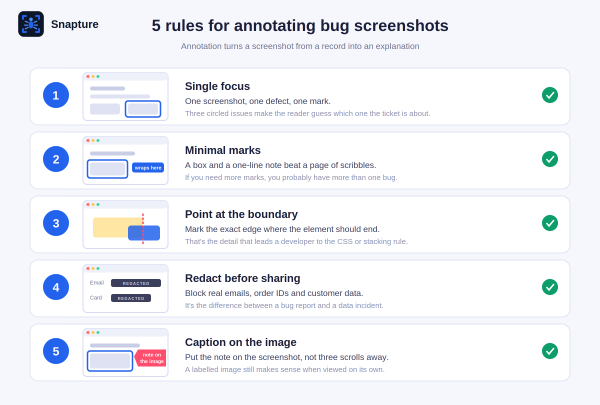
Single Focus
One screenshot, one defect, one thing marked. A capture with three unrelated issues circled forces the reader to guess which one the ticket is actually about. This is the same discipline the pillar article names for tickets generally: one defect per report, not per screenshot.
Minimal Marks
A box around the affected element and a one-line note beats a screenshot covered in arrows, circles, and freehand scribbles. The goal is to remove the need to hunt, not to leave a trail of everything the tester noticed along the way. If there’s more than one thing worth marking, that’s usually a sign there’s more than one bug.
Point at the Boundary, Not Just the Object
For overlap and clipping defects specifically, the useful mark isn’t a box around the whole element; it’s a mark on the exact edge where it’s supposed to end and doesn’t. That’s the detail a developer needs to find the CSS rule or stacking context responsible.
Redact Before It Leaves Your Machine
Real customer data, real emails, real order numbers, and real internal identifiers show up in bug screenshots constantly, because that’s what was on screen when the defect appeared. Blurring or blocking that data out before the screenshot leaves the tester’s desk isn’t optional hygiene. It’s the difference between a bug report and a data-handling incident, especially for teams testing against production or production-like data.
Write the Caption Near the Evidence
A note on the image itself (“banner overlaps button here”) survives being viewed on its own far better than a description field three scrolls away that the reader may never reach.
Full-Page vs. Viewport vs. Element Captures
The scope of a capture isn’t a settings preference. It changes what story the screenshot tells, and picking the wrong one can actively mislead the reader.
Element Captures
Element captures isolate the broken component and nothing else. They’re the sharpest evidence for a defect that’s entirely self-contained: a button with the wrong label, an icon that’s the wrong colour. Their weakness is exactly their strength: they strip out everything around the element, so a defect that’s actually about context (this button is fine on its own, but it’s being covered by something else) disappears along with the surrounding page.
Viewport Captures
Viewport captures show exactly what a real user saw, at the size they saw it. This is the right default for almost everything, because it reproduces the actual conditions of the bug, including the things that caused it, like a sticky header eating space or a banner that only appears at certain scroll positions. It’s also the honest choice: it doesn’t show the developer anything the tester didn’t actually see.
Full-Page Captures
Full-page captures scroll-stitch the entire page into one image. They’re useful for cataloguing multiple issues on a long page or for showing overall layout, but they can quietly misrepresent the defect. A full-page capture can make a spacing issue look proportionally small when it was glaring at actual viewport height, and it can flatten sticky or fixed-position elements into positions they never actually occupied on screen, since stitching tools render them differently than a live scroll does.
Match the Scope to What the User Experienced
The rule that keeps this honest: capture at the scope that matches what the user actually experienced. If the bug is about something covering something else at a specific scroll position, a viewport capture at that scroll position is more truthful than a full-page capture that reassembles the whole thing into a shape no one ever saw.
Where Screenshots Mislead
Screenshots are trusted more readily than prose, which is exactly why a misleading one does more damage than a vague sentence would. A few recurring ways they go wrong:
Stale Captures
A screenshot taken minutes after the actual failure, from a page that’s been reloaded, re-navigated, or had its state reset, can look identical to the failing screenshot while showing a different underlying state entirely. If the capture isn’t from the moment of discovery, say so, or better, capture at discovery, which is the whole premise of screenshot-first workflows.
Cropped Context
A tight crop that shows the broken element in isolation can make a defect look worse (or better) than it is, and it strips out the surrounding UI a developer needs to identify which instance of a repeated component is broken, or what’s causing an overlap. When in doubt, capture wider than feels necessary. Cropping down later is easy; the surrounding context, once gone, isn’t recoverable from the same image.
Zoom and Scaling Artefacts
Screenshots taken at non-standard browser zoom, on high-DPI displays without accounting for scaling, or resized after capture can introduce blur or misalignment that looks like the bug itself. A slightly fuzzy edge on a resized screenshot is not evidence of a rendering defect, and a developer who can’t tell the difference will waste time chasing it.
Browser Chrome and Extensions Leaking In
A screenshot that includes a tester’s bookmarks bar, an ad blocker’s icon badge, or a browser extension’s injected banner can make an environment look different from what a real user would see, muddying whether the defect is even reproducible outside that specific machine.
None of this is an argument against screenshots. It’s an argument for treating a screenshot the way you’d treat any other evidence: accurate about what it does and doesn’t show, captured under conditions that match the claim being made about it.
Retention and Traceability
A screenshot that lives in a chat thread has already started dying. Two weeks later, when the ticket reopens after a regression, the evidence that would settle “is this the same bug or a new one” is buried in a scrolled-away conversation instead of attached to the issue. This is the exact communication-gap failure the pillar article maps as one of the six recurring frictions in bug reporting.
Evidence that’s meant to be useful later needs to stay attached to the thing it’s evidence for.
Keep It on the Ticket, Not in Chat
If the screenshot’s home is a Slack thread, it’s one workspace reorganisation away from being unfindable.
Version It Against the Fix
When a bug is marked fixed, the original failing screenshot is what makes a later regression provable rather than disputable. Without it, “is this the same issue” becomes a memory exercise.
Name and Date It, Don’t Just File It
A screenshot titled “Screenshot_2024-03-11_142033.png” inside a shared drive folder is retrievable in theory and unfindable in practice. Attached to the ticket with the ticket’s own title, it’s retrievable by anyone who can search the tracker.
Keep It After the Ticket Closes
Client-facing reporting, audits, and regression suites all eventually need to point back at “here’s what was actually broken,” and that’s only possible if the evidence outlived the sprint it was filed in. Traceability isn’t a nice-to-have layered on top of screenshot-based reporting. It’s the second half of the same problem the first half solves. Capturing the right evidence at the right moment is wasted work if that evidence doesn’t survive as long as the ticket does.
Where This Fits in a Screenshot-First Workflow
“Why Bug Reports Fail” frames screenshot-first bug reporting as an inversion: the report begins with the evidence, and the writing exists to explain what the evidence shows, rather than the screenshot being an attachment somebody gets around to. Everything in this article is what makes that inversion actually work in practice: knowing which defects need a screenshot versus a recording versus a log, annotating so the image explains itself, choosing a capture scope that doesn’t distort the story, and keeping the evidence attached long enough to matter.
How Snapture Supports It
This is also where a capture tool earns its place, rather than being a nice-to-have. Snapture’s Chrome extension captures from the page being tested in one click (screenshot or recording, viewport or full page) with annotation, highlighting, and blur tools applied directly on the capture before it ever leaves the tester’s machine, and the result attached to the issue in the team’s existing tracker rather than pasted into chat. It doesn’t decide which defect class you’re looking at or whether a capture tells the truth about what a user saw; that’s still a judgement call for whoever’s testing. What it removes is the manual friction between having the right evidence in front of you and getting it, intact and annotated, onto the ticket.
Conclusion
Screenshot-based bug reporting works when the image is treated as evidence, not decoration. Match the evidence to the defect: a screenshot for what’s visibly wrong, a recording or console log for how it went wrong. Annotate one defect with one clear mark, redact real data before sharing, capture at the scope the user actually saw, and keep the evidence attached to the ticket long after it closes. Do that consistently and fewer reports bounce back with “can’t reproduce.”
If you want to see whether that changes anything for your own reports, Snapture has a seven-day free trial with no card required. Install the Snapture Chrome extension and file your next bug report with the evidence already attached.
FAQs
When should a bug report use a screenshot instead of a description?
Use a screenshot whenever the defect is visible in a single static frame: layout, alignment, spacing, text, or component-state problems. A screenshot lets the reader recognise the problem instead of reconstructing it from prose, which is faster and less ambiguous for anything spatial or visual. Use a recording or log instead when the defect is about sequence, timing, or invisible state that a still frame can’t show.
What’s the difference between a screenshot and a screen recording for bug reports?
A screenshot captures a single moment and is the right choice for static, visible defects. A screen recording captures a sequence over time and is necessary when the failure involves motion, timing, or multiple interaction steps: a flicker, a race condition, or an action that only breaks partway through a gesture. If a reader would need to ask “and then what happened,” the evidence needed is a recording, not a screenshot.
How should screenshots be annotated in a bug report?
Mark one defect per screenshot with minimal, targeted annotation: a box or arrow at the exact affected area, plus a short note, rather than a dense capture covered in unrelated marks. For overlap or clipping issues, annotate the specific boundary where the element should end but doesn’t. Redact any real customer or account data before the screenshot leaves the tester’s machine.
Why do screenshots sometimes mislead developers instead of helping them?
A screenshot can mislead when it’s stale (captured after the failing state has changed), cropped too tightly to show the surrounding context a developer needs, or distorted by zoom, scaling, or browser chrome that isn’t part of the actual defect. Full-page captures can also misrepresent sticky or fixed-position elements that never appeared that way during a real scroll. The fix is capturing at the scope and moment that match what an actual user experienced.
Should bug screenshots be kept after the ticket is closed?
Yes. Evidence attached to the ticket, not pasted into chat, is what makes a later regression provable rather than disputable, and it’s often needed again for audits, client-facing reporting, or verifying that a reopened issue is actually the same defect. Screenshots that only live in a chat thread or an unstructured shared folder tend to become unfindable exactly when they’re needed most.